
How to Restore Old Photos with AI: The Complete 2026 Guide
A practical, source-cited guide to AI photo restoration — what it fixes, what it cannot, how to scan your prints, what it costs, and when to hire a professional instead.
 PhotoRestoration Team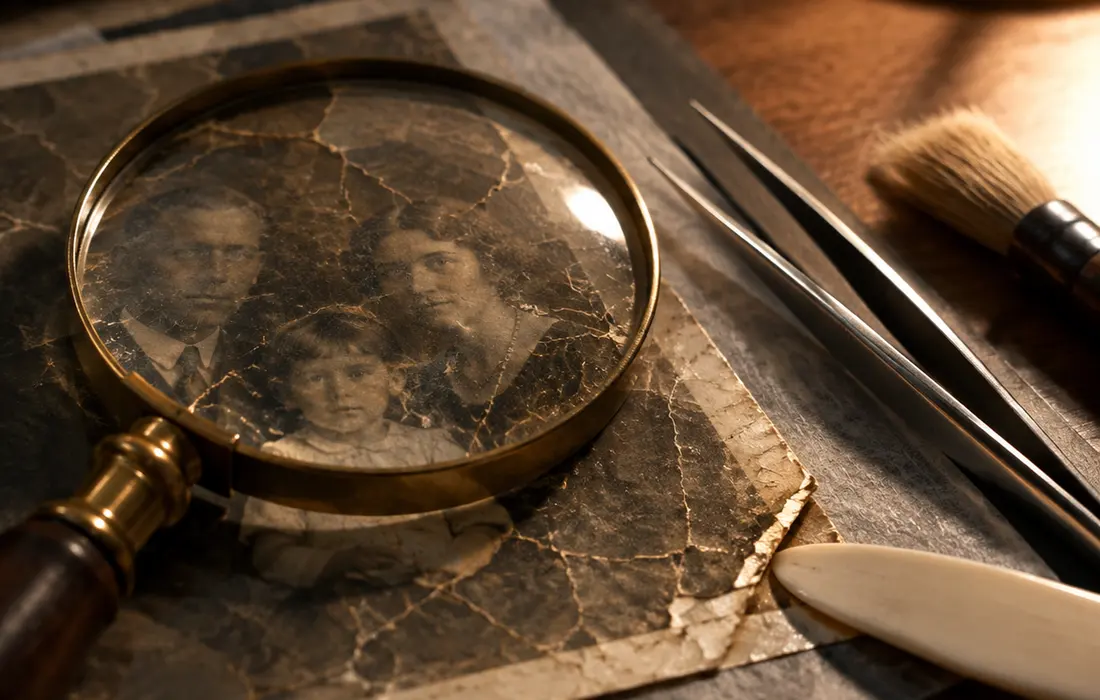
Every family has a box of photographs that time is winning against: a wedding portrait going silver, a grandparent's army photo cracked down the middle, a snapshot faded to a ghost of what it showed. This guide walks through restoring those pictures with AI — what the process actually repairs, what it cannot bring back, how to prepare the files, and what it costs — so you can decide which of your photographs to trust to it.
Why old photographs deteriorate
Most damage to family photos is chemistry, not accident. Early black-and-white prints were coated in paper fibers that absorb moisture, and their silver image particles react with air pollutants; color prints from the 1960s–80s fade even faster because their dyes are inherently unstable. Heat, humidity, and light all accelerate both processes, which is why albums stored in attics and basements suffer the most.
The U.S. National Archives' family preservation guidance puts the priority plainly:
Preventing damage is the key to preserving your items.
Once a print has faded, torn, or been stained, that damage is baked into the physical object. Restoration — digital or by hand — works from a scan of what remains. Which is exactly why restoring matters: digitizing stops the clock, and AI repair reverses a good part of what the clock already did.
What AI restoration can actually fix
A trained restoration model looks at millions of photographs and learns what a healthy face, fabric, or sky is supposed to look like. Given your scan, it can:
- Rebuild lost contrast and density — faded, yellowed, or washed-out tones are re-mapped to a full range.
- Close scratches, tears, and creases — the model in-paints the missing detail from surrounding texture.
- Sharpen soft focus — mild blur from an old camera or a warped print is reconstructed, not just unsharpened.
- Remove stains and spots — water damage, mold flecks, and silvering are detected and lifted.
What it cannot do is invent information that was never captured. A face that was overexposed to a white blob at the moment of exposure has no data to rebuild from; the model will produce a plausible face, but it is an informed guess, not a recovery. That distinction — repair versus plausible reconstruction — is the honest line every AI restoration result sits on.
How to restore an old photo, step by step
The whole flow takes about a minute per photo:
- Scan or photograph the print. A flatbed scanner at 600 DPI is ideal; a phone photo in even daylight works if the print is held flat and fills the frame. See the scanning checklist below.
- Upload the scan to the free preview. You get a watermarked result at no cost, so you can judge the quality before paying anything.
- Pick the mode that matches the damage. Restore fixes fading and blur; repair targets tears, scratches, and stains; colorize adds believable color to black-and-white originals.
- Review the result at full size. Zoom into faces — eyes and mouths are where restoration models are most visible, for better or worse.
- Download the full-resolution file if you are happy with it, and store it in more than one place. The Library of Congress's personal digital archiving guidance recommends keeping copies in at least two separate locations, one of them off-site.
If you want the long-form version of the whole workflow, the AI photo restoration page covers each mode in depth.
How should I scan photos for the best results?
Restoration quality is capped by scan quality — the model can only work with what the scan preserved. Three rules cover most of it:
- Resolution: 600 DPI for prints (300 DPI minimum). Small or detailed originals — ID photos, group shots — deserve 1200 DPI. Higher resolution gives the repair model more real texture to rebuild from.
- Clean, flat, evenly lit. Wipe the scanner glass; press the print flat; avoid shadows from overhead lights when using a phone. A curled print photographs with gradient shadows that the model will faithfully "restore" into the wrong image.
- Leave color alone. Scan faded color prints in color and sepia prints in color — the tint carries real information about the original dyes that the restoration uses. Greyscale-scanning a color photo throws that away.
The Library of Congress maintains detailed care-and-handling instructions for photographic prints; if you want the physical-storage side done right, their photograph preservation pages are the reference.
How much does photo restoration cost?
With our tool: the preview is free, and a full-resolution download starts at a few dollars — see the current pricing for the credit packs. There is no subscription required for a one-off family project.
For comparison, a professional human restorer typically charges $30–100+ per photo and takes days, because the work is done by hand in an editor, layer by layer. AI costs a fraction of that because the model does in seconds what the artist does by hand — and the trade is exactly what you would expect: the professional handles severe damage more thoughtfully, while the AI is faster, far cheaper, and more than good enough for the fading, scratching, and softness most family collections actually have.
Is AI restoration better than hiring a professional?
For most photographs, yes — and it is worth being precise about why.
AI wins on scale and speed. A shoebox of two hundred photos is a project you can finish in an afternoon yourself for pocket change, versus a five-figure restoration bill and months of turnaround. For the bread-and-butter damage — fading, mild blur, surface scratches, color shifts — a good model's result is genuinely competitive with careful hand work.
A professional still wins on severe, ambiguous damage. A photo missing a third of the subject, a group shot where every face is smaller than a fingernail, or a portrait where "what great-grandmother actually looked like" matters to the family: those benefit from a human who asks questions before inventing details. Our honest advice: run the free preview on your hardest photo first. If the result convinces you, you have your answer; if it does not, that is the one photo worth a professional.
Frequently asked questions
Does AI restoration change the photo?
It changes the file, not the original. Your scan is untouched; the model produces a new image derived from it. And a good restoration stays conservative — it rebuilds damage from surrounding evidence rather than re-inventing the subject. Keep the unedited scan archived alongside the result, as the personal digital archiving guides recommend for any derivative of a scanned original.
Can a badly torn or missing photo be restored?
Usually the tears and creases, yes; genuinely missing regions are reconstructed as plausible guesses. See our dedicated guide to repairing damaged photos for what each type of damage can and cannot recover.
Can black-and-white photos be turned into color at the same time?
Yes — colorization is its own mode that runs on the restored image, and it is covered in detail in our colorization guide. Restoring first, colorizing second produces cleaner color, because the model is not interpreting scratches as facial features.
Do I own the restored photos?
Yes. Results of your uploads are yours to download, print, and share — that is stated in the terms of service, and there is no watermark on paid downloads.